How it works

A Windows app does the work. You stay in control of every step.

The app signs in to your tenant as you, reads the configuration and writes it only when you say so. The portal keeps the history, shows it to your team and never touches the tenant itself.

01

Back up

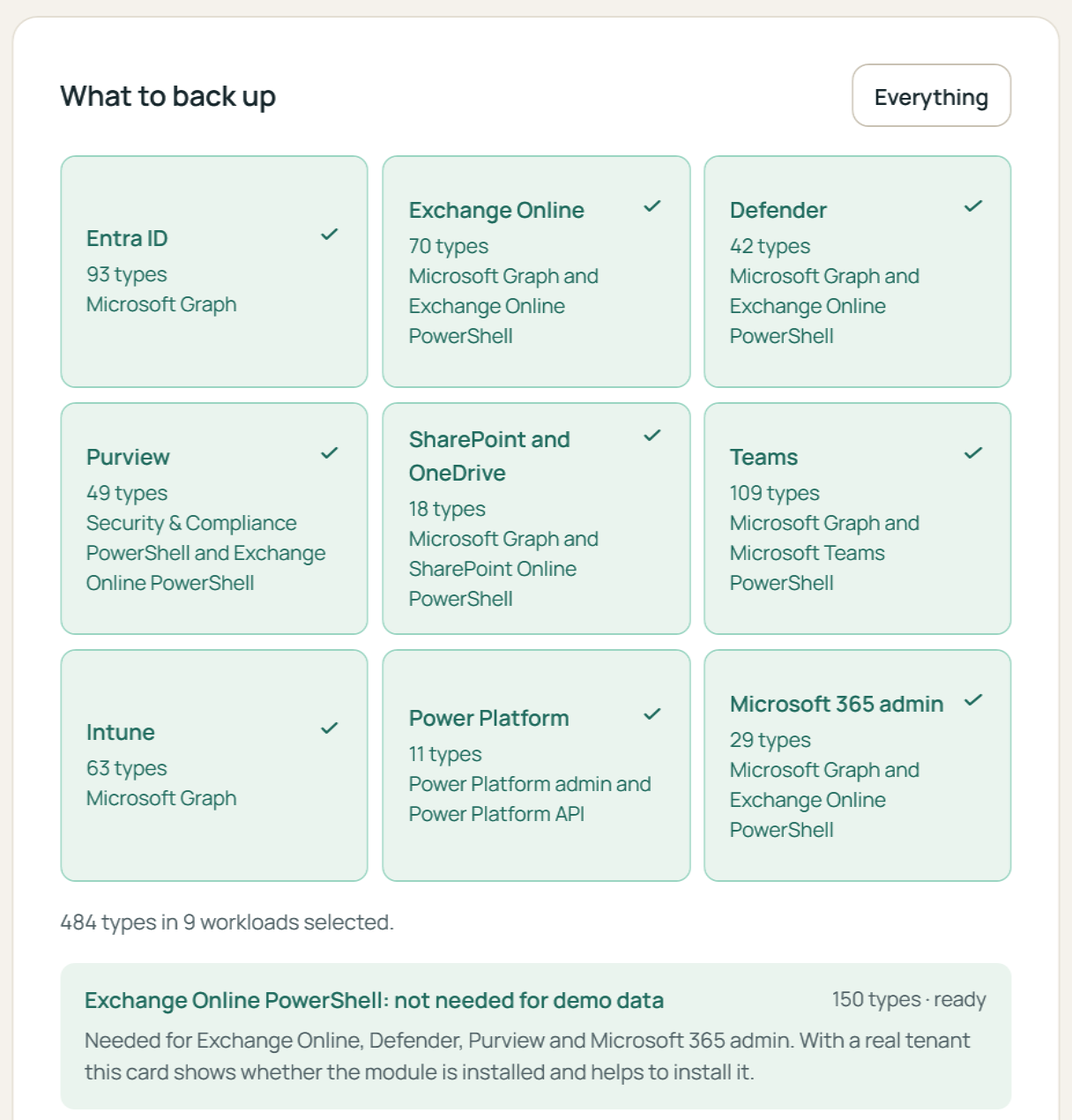
Choose the admin centers, or everything, and sign in to Microsoft with your administrator account. The app reads every setting it knows, 484 types in all, and saves them as one snapshot.

  • Read-only permissions. A backup never changes the tenant.
  • Stored where you choose, per tenant: encrypted in our portal, or in a vault folder on your computer.
  • Scheduled backups run as a Windows task on your computer, with an app registration your organization owns and a certificate that never leaves the machine.
The Back up page of the Windows app: nine workloads selected, 484 types, and the promise that a backup is read-only.
Choosing what to back up. Demo data.
02

Compare

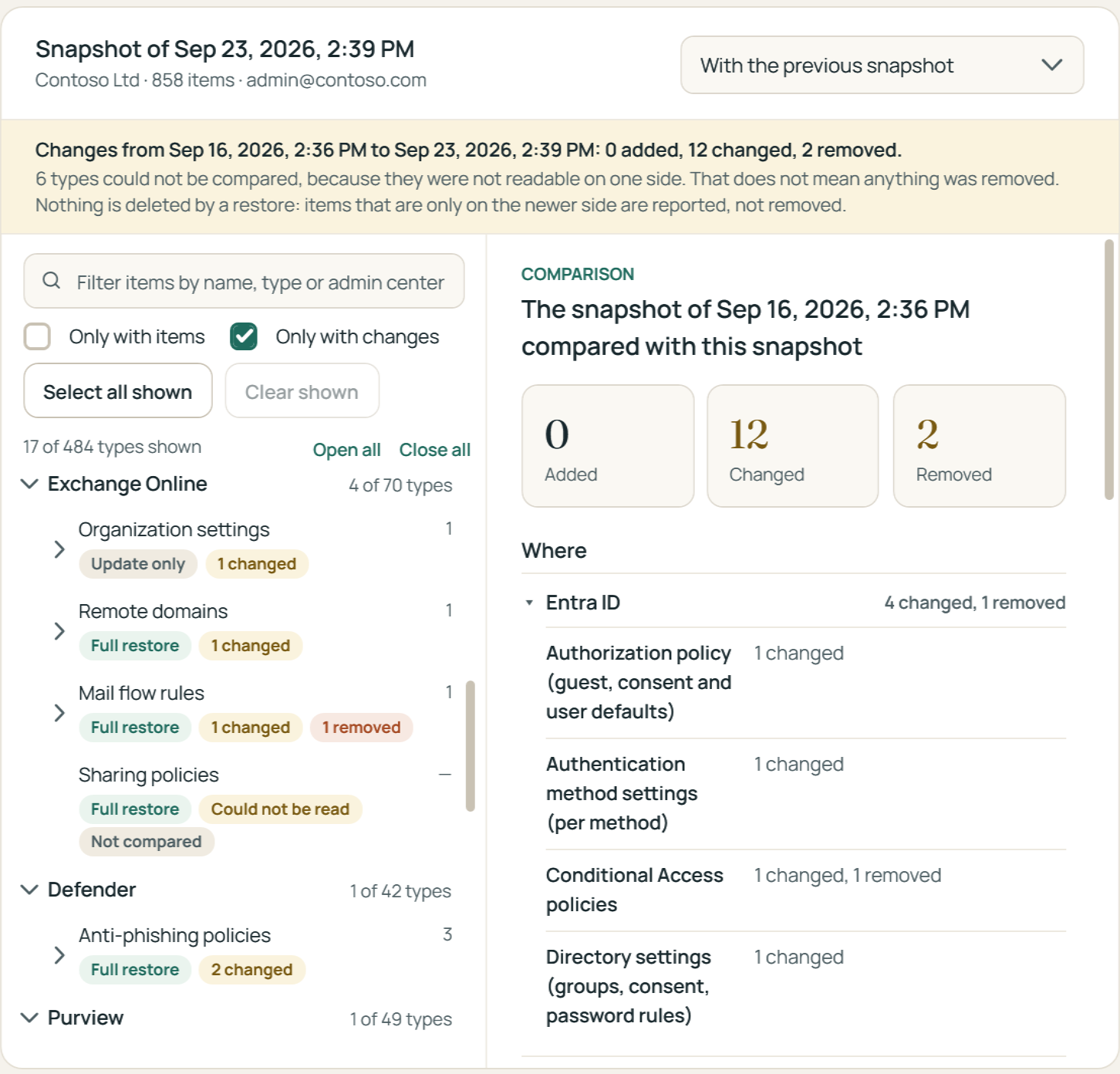
Open any two backups side by side, or compare a backup with the tenant as it is right now. Items are marked added, changed or removed, and a changed item shows only the settings that differ, with the old value beside the new one.

  • Filter by name, type or admin center. Search a whole backup.
  • Noise such as timestamps and counters is left out, so a change means a change.
  • Hosted backups can be browsed and compared in the browser by everyone in your workspace.
Two backups compared in the Windows app: a Conditional Access policy whose state changed, with the saved settings listed.
What changed between two backups, setting by setting. Demo data.
03

Restore: preview, confirm, apply

Tick the items you want back and review the plan: the order they will run in and the permissions the restore will ask for. The restore signs in on its own, asking only for what those items need, and discards the sign-in afterward.

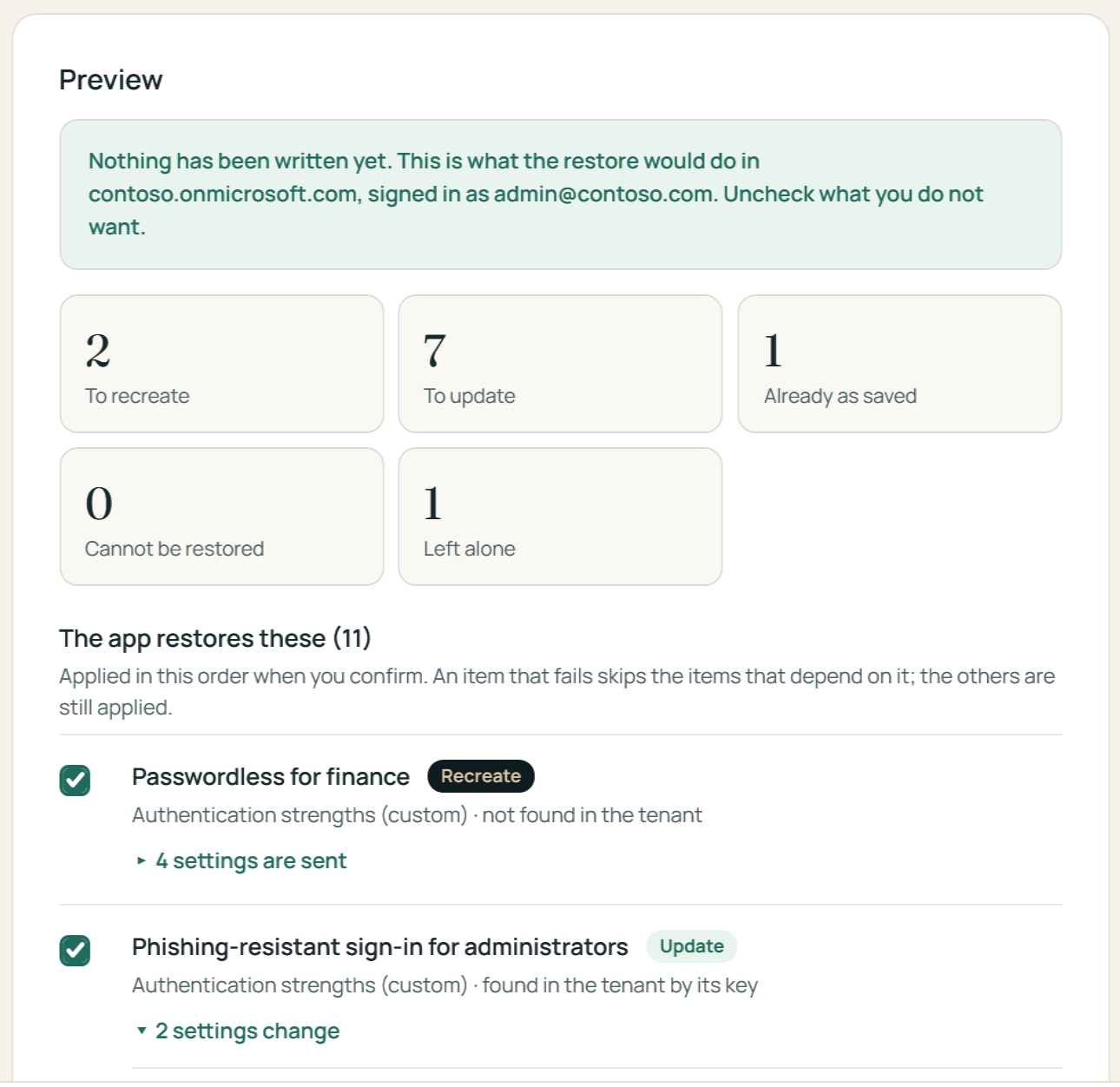
The preview reads the tenant first and shows what would be recreated, updated or left alone. Nothing is written until you confirm.

  • Nothing is deleted. Items that exist in the tenant but not in the backup are reported, never removed.
  • By default, recreated Conditional Access policies come back in report-only mode, and mail flow rules, connectors and threat policy rules come back disabled; you can choose to recreate them as saved. Settings updated in place take effect at once.
  • An item that fails skips the items that depend on it and says why.
The restore preview: counts of items to recreate, to update, already as saved, that cannot be restored and that are left alone, before anything is written.
The preview, before anything is written. Demo data.
04

Journal and rollback

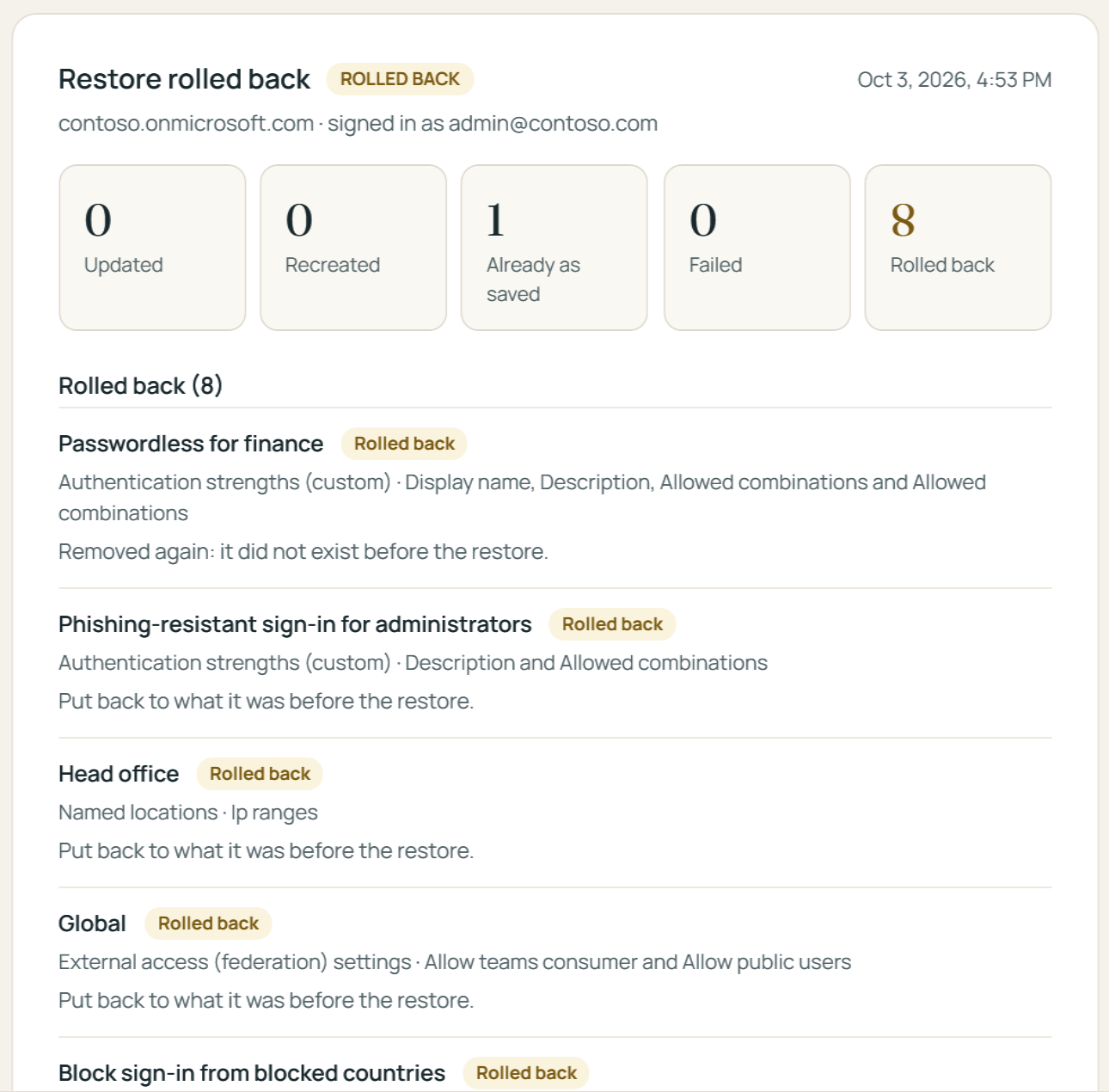
Every item records its state before and after in a journal on your computer. If the result is not what you wanted, the app offers a rollback for every change it made: it writes back the values in the journal and removes again what the restore recreated. Microsoft can refuse an item, and the result lists any that could not be rolled back; steps you carried out by hand are not undone by the app.

The next backup confirms that the tenant matches what was restored.

A restore that was rolled back: eight items put back to what they were before the restore, each listed with its result.
A restore rolled back from its journal. Demo data.
05

When a setting has to go back by hand

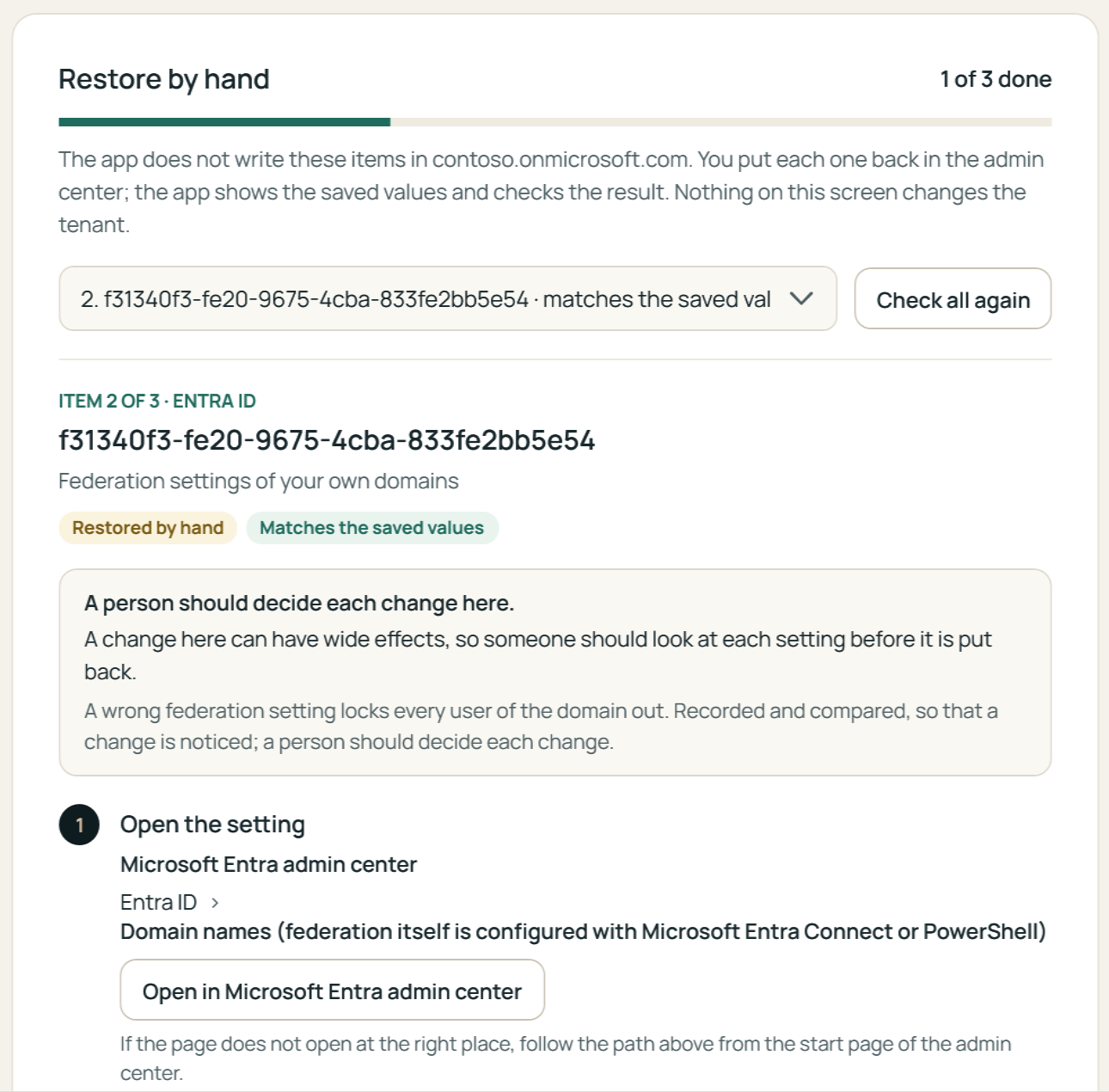
Some settings can only be set by a person in the admin center, or are not written automatically by the app yet. For those, the app opens a walk-through: the saved value beside the current one, only the settings that differ, a button that opens the right page of the right admin center, and a check that confirms you got it right.

Prefer to run it yourself? The app writes a PowerShell restore script you can read before you run it. It previews first and carries its own undo; your settings travel in it as data, never as commands.

A guided restore of the federation settings of a domain: why a person decides it, the path in the Microsoft Entra admin center and a button that opens it.
A guided restore of one item. Demo data.
Two parts

What runs where.

The split is deliberate: whatever can change your tenant runs on a computer you control.

The Windows app, on your computer

Signs in to Microsoft as you. Reads the tenant, writes snapshots, compares, restores and rolls back. Keeps the local vault and the restore journal. Runs scheduled backups as a Windows task. Sign-ins stay in memory and are never written to disk.

The portal, in your browser

Holds your workspace, your team and the history of every tenant. Keeps hosted backups encrypted, and for local vaults only the counts. Lets your team browse and compare hosted backups and prepare restores, which the app then carries out.

Try it on your own tenant.

The free Preview includes a sample backup of 10 setting types, up to 3 times, with browsing and comparing. You need a Windows computer and an administrator account for the tenant.